Get Digital With Us
Digital Dental Solutions:
Medit, iTero, Trios, and More
Join The Digital Dentistry Era As Our Partner
Digital Dentistry, Embrace the Technology, Become the Future
For implant cases, we can accept scan files utilizing any brand scanbody, from Nobel Biocare to Dess and any other brand on the market.
Digital dentistry is no longer just the future of dentistry; it has become the present. We at Global Dental Solutions embrace technology and strive to keep up to date with the new technologies that improve our clinicians’ practices. If you’re a user of an IntraOral Scanner or want to be, we’re equipped to service your needs and we’d like to be a part of your team. Read below to learn more, or give us a call.


Medit i500, i600, & i700
Are you a Medit i500, i600, or i700 clinician? At Global Dental Solutions, we embrace evolving technology in the dental industry and strive to meet the needs of all our existing and potential customers. Accepting your digital impression file is no problem. Additionally, using a digital impression system doesn’t mean you’re confined to only milled restorations, such as zirconia. Using the model work we print from the digital file, we can fabricate any restoration type desired, from a standard PFM to a pressed and layered E.max crown. We can also fabricate partials, dentures, and night guards using the printed model made from your scan.
Scanning shiny and reflective surfaces such as Locator abutments, PFMs with metal attachments, etc. can be difficult to capture accurately. There is an icon on the Medit screen that can be selected for scanning metal surfaces. When this option is enabled and a metal prosthesis is discovered during scanning, the scan performance is improved for metal prostheses scanning.
Here is a link to learn more about this icon on the Medit scanner: Metal scan – Medit Help Center
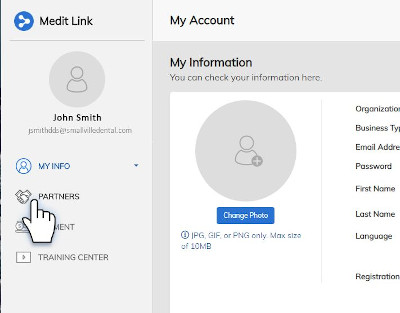
Step 1: To send us files, log into your Medit Link account at www.meditlink.com. From there, select “PARTNERS” which is the second item left side of the page.
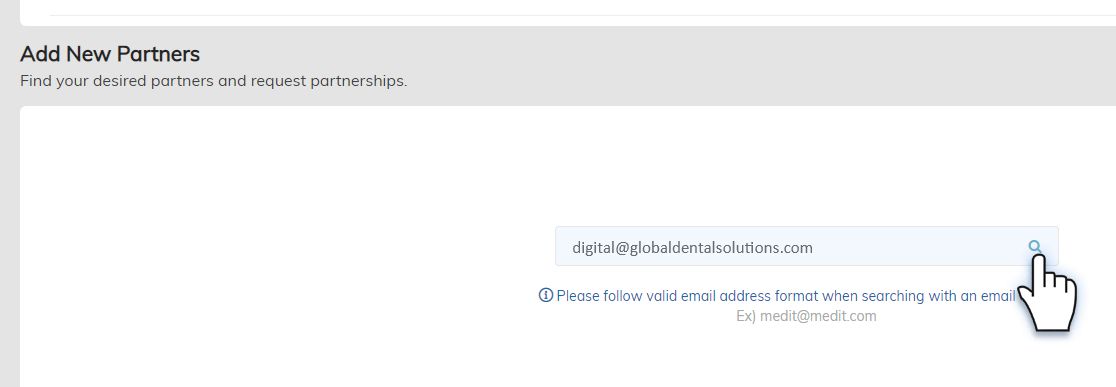
Step 2: After you reach the “PARTNERS” page, look at the search bar located in the white box found in the lower middle of the page. Enter “digital@globaldentalsolutions.com” into the search bar and click the magnifying glass or press ‘Enter’ on your keyboard.
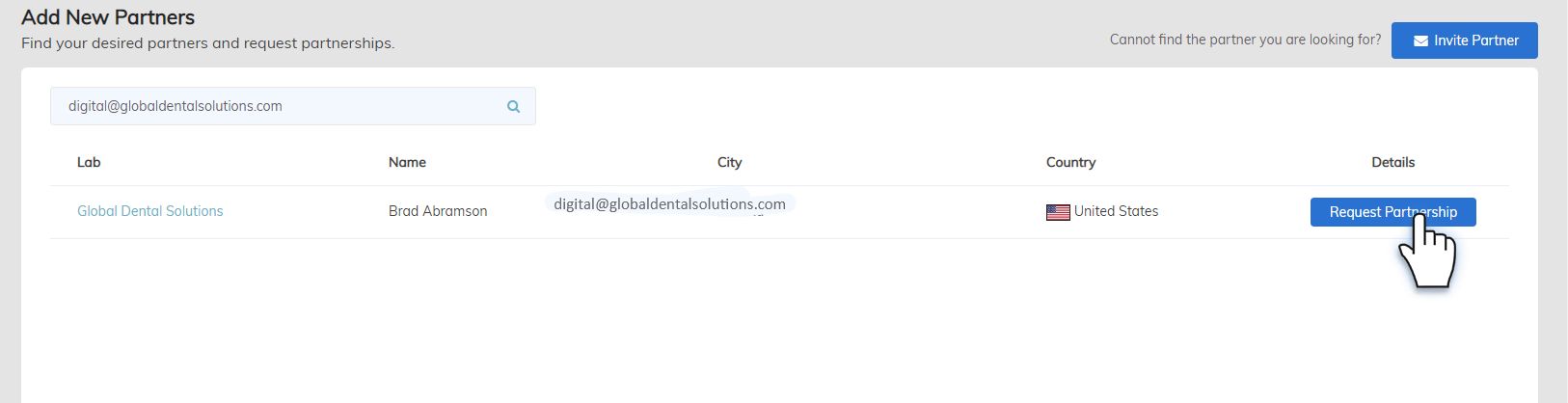
Step 3: Global Dental Solutions will appear as the first and only result. Simply click the blue “Request Partnership” button on the far right side.
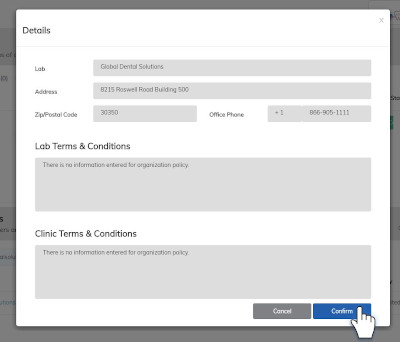
Step 4: A small “Details” window will appear containing contact information for Global Dental Solutions, click the blue “Confirm” button in the lower right corner of the small window.
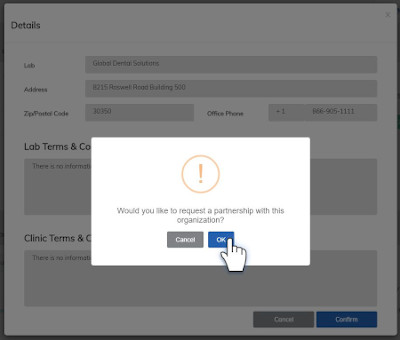
Step 5: A final window will appear confirming your request for partnership, click “OK” to complete your connection.
To send us cases, simply select Global Dental Solutions from the drop-down list of Partners when ordering your cases.
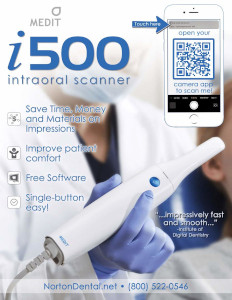
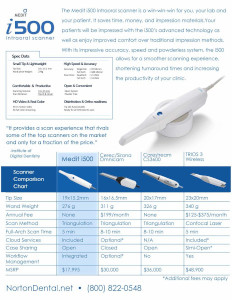
For Additional Information From The Distributor, Click On The Following Brochure Pages
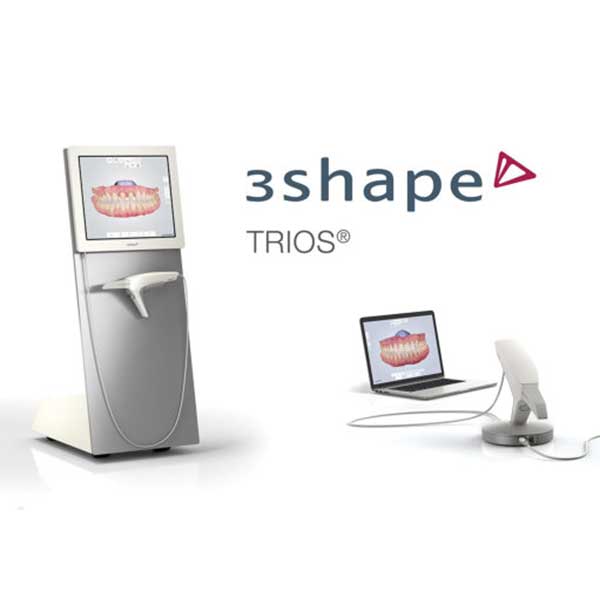
3Shape TRIOS
Are you a 3Shape TRIOS clinician? At Global Dental Solutions, we embrace evolving technology in the dental industry and strive to meet the needs of all our existing and potential customers. Accepting your digital impression file is no problem. Additionally, using a digital impression system doesn’t mean you’re confined to only milled restorations, such as zirconia. Using the model work we print from the digital file, we can fabricate any restoration type desired, from a standard PFM to a pressed and stacked E.max crown or bridge. We can also fabricate partials, dentures, and night guards using the printed model made from your scan.
Proper technique is required for a successful scan. If you don’t follow the scan strategy outlined by 3Shape, you may get bad results. Here is the link for the 3Shape Trios scan path protocol.
To send us files, log into your 3Shape Communicate account at us.3shapeCommunicate.com. From there, navigate to Connections, which is the 4th item on the menu bar in the header at the top. The Connections tab is where all of your connections are managed. From there, click the Add Connection button at the bottom left. You will be prompted to “Fill in the email of the Clinic or Lab you want to connect to.” Type digital@globaldentalsolutions.com into the field and click the Find button. Global Dental Solutions will appear in the Result field. Type your desired message to us in the “Message to Global Dental Solutions field” and click the Connect button. You’re now ready to send us files!
We Are a TRIOS Ready Laboratory
How to send a Shining3D intraoral scan to Global Dental Solutions
After you have scanned and pre-design an order, you can now send it to the lab.
Keep in mind that you must make a connection with the lab to which you want to send order. More details about how to make a connection with a lab, please refer to below articles.
You can send an order to a lab by following the steps below:
- Click on Go to send button to go to the send page.
- While on the send page, you will see a image of the scan shown in the center of the screen with the send settings on its left.
- Select the target lab in the drop-down list. Click + to add attachements to the order if needed.
- Click Send button to start exporting and sending process.
- After the send completed successfully, the order state will read “waiting to be accepted”.
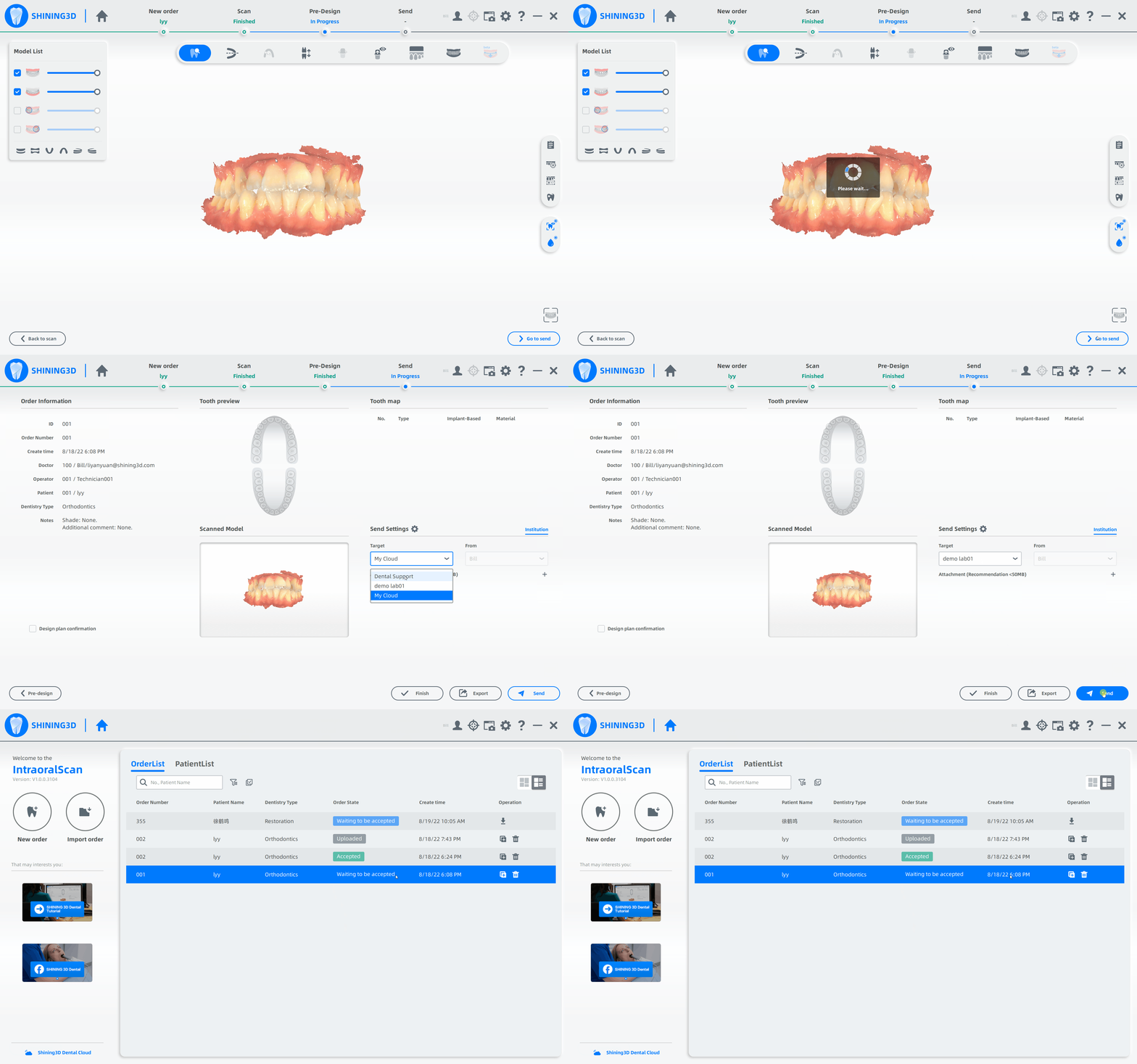
You can monitor the status of the order on the order list page. When the order has been successfully accepted the order state will be marked in green and indicate Accepted.
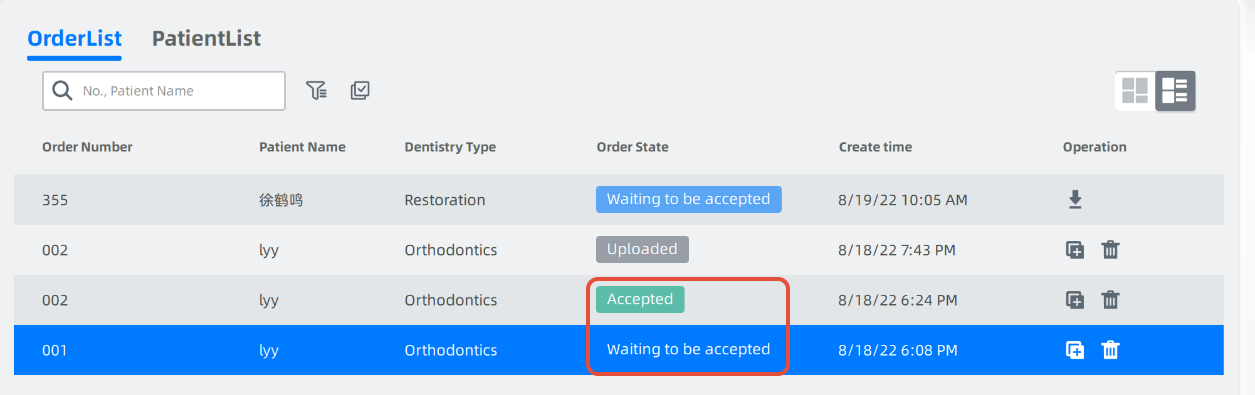
How send/forward an uploaded order to an lab via Dental Cloud
After you uploaded a order to the Dental Cloud, you will find the order in the case list of your Dental Cloud. See How to upload an order to your cloud.
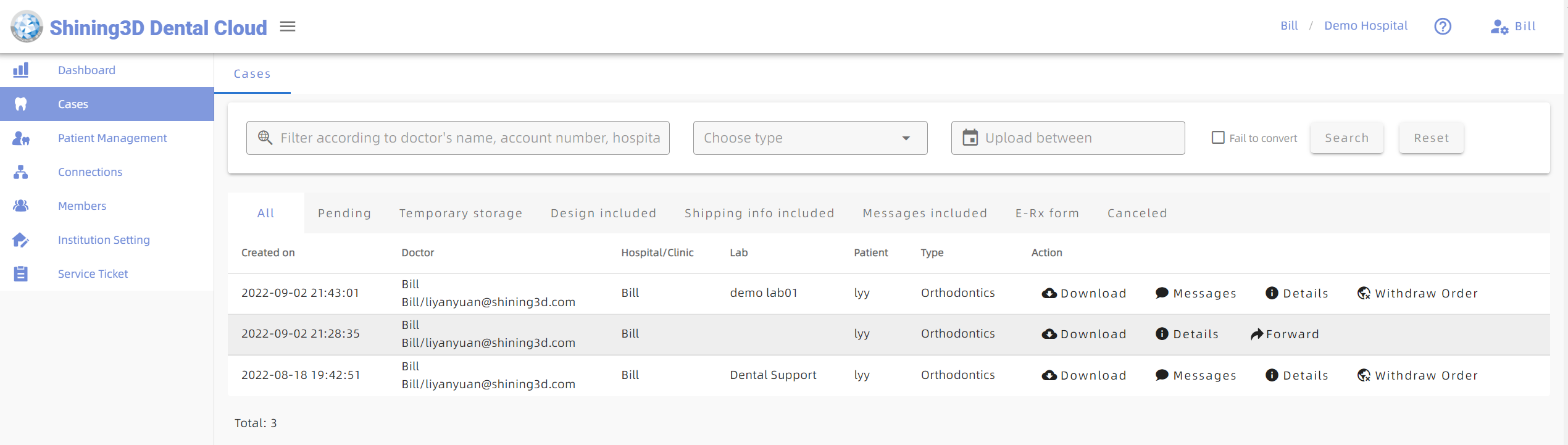
Now you can send the uploaded order to an designated lab.
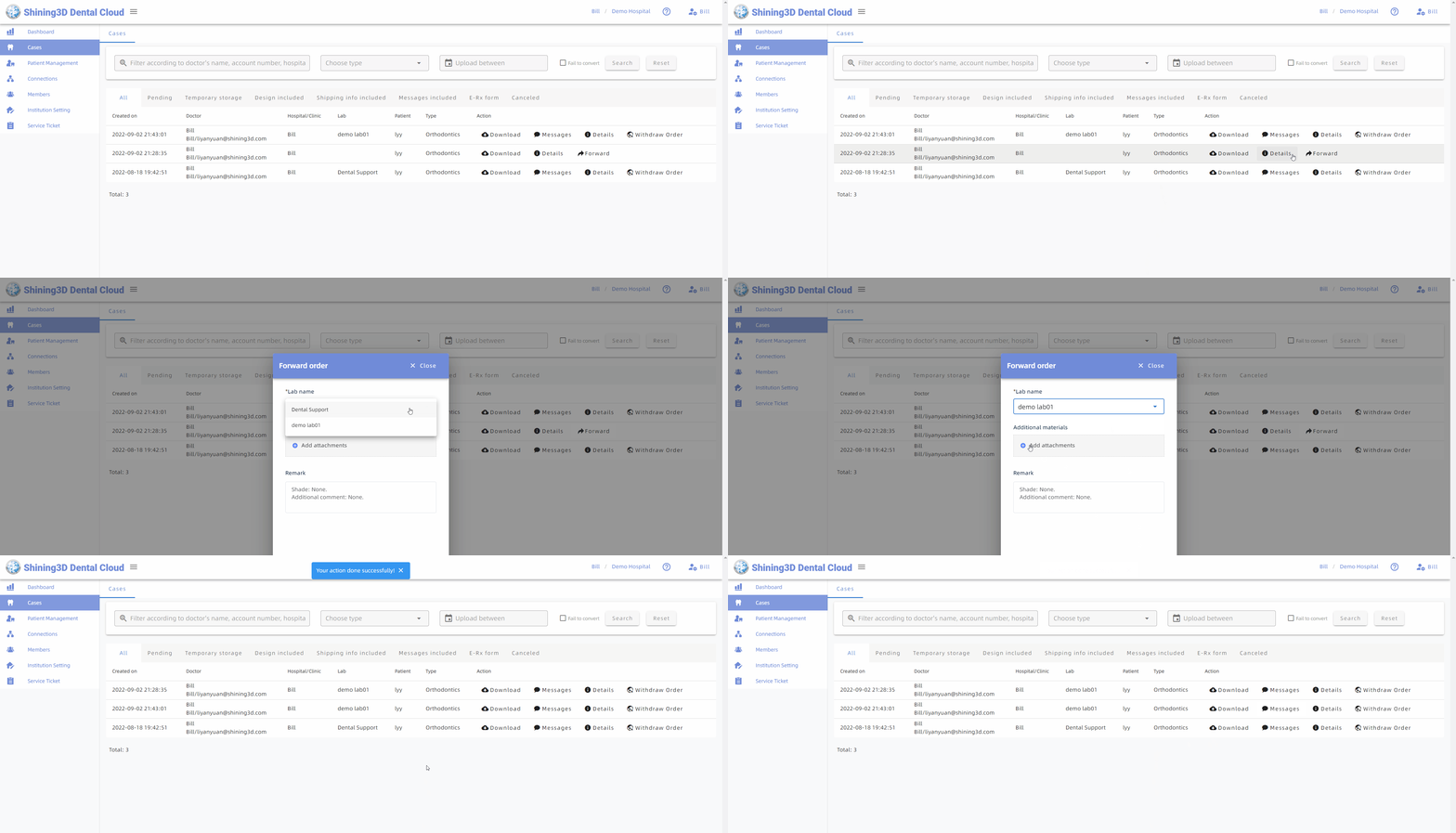
- Click on Forward button, the Foward order window will appear.
- Click and select the lab in the drop-down list. Click + to add attachements to the order if needed.
- Click to send the order.

Dexis
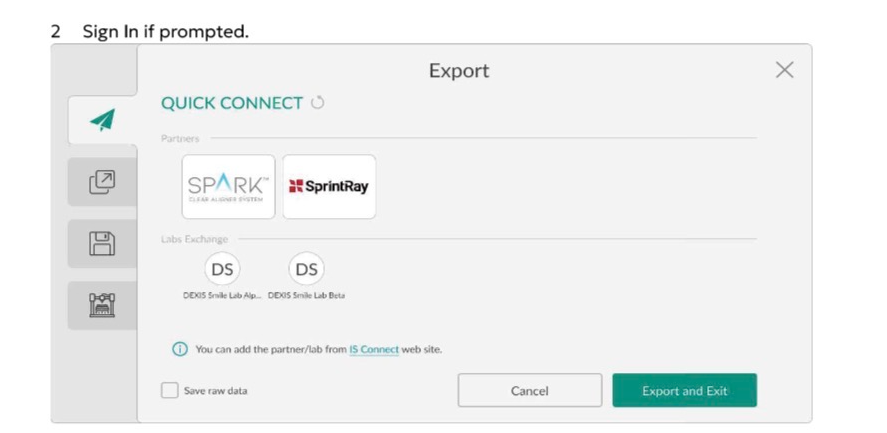
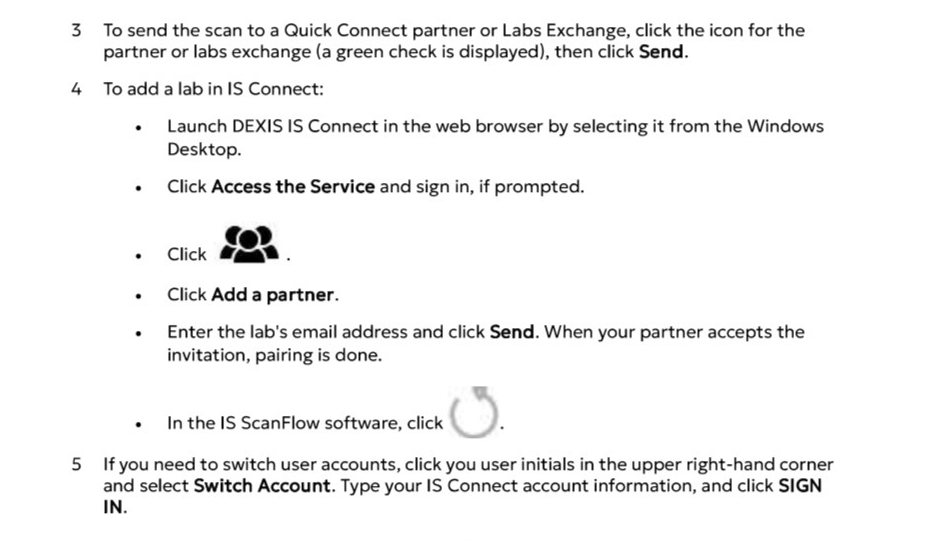
We currently utilize IS Connect and receive files from DEXIS IOS users. Please follow the instructions so you can connect with us!
Carestream Dental
Are you a Carestream clinician? We, at Global Dental Solutions, embrace evolving technology in the dental industry and strive to meet the needs of all our existing and potential customers. Accepting your digital impression file is no problem. Additionally, using a digital impression system doesn’t mean you’re confined to only milled restorations, such as zirconia. Using the model work we print from the digital file, we can fabricate any restoration type desired, from a standard PFM to a pressed and stacked E.max crown or bridge. We can also fabricate partials, dentures, and nightguards using the printed model made from your scan.
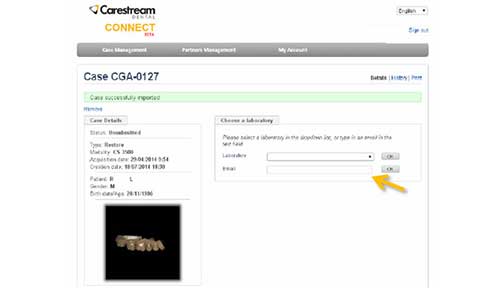
You can add us to your software at the time you want to send a case. After you import the case, on the right side of the screen you will see the “Choose a Laboratory” tab. In the “Email” field, please enter digital@globaldentalsolutions.com and select the okay button.
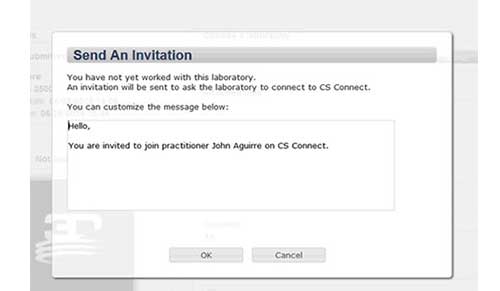
After you select okay, the next step is to fill out the RX notes, attach extra files if needed, and select the submit button. Once the submit button is selected, the invite message window will pop up and you will be prompted to send an invitation message. Customize your message as desired, then select okay, and we will be sent an invitation to accept your request. Upon our acceptance, the digital scan file will be submitted to us for case manufacture.
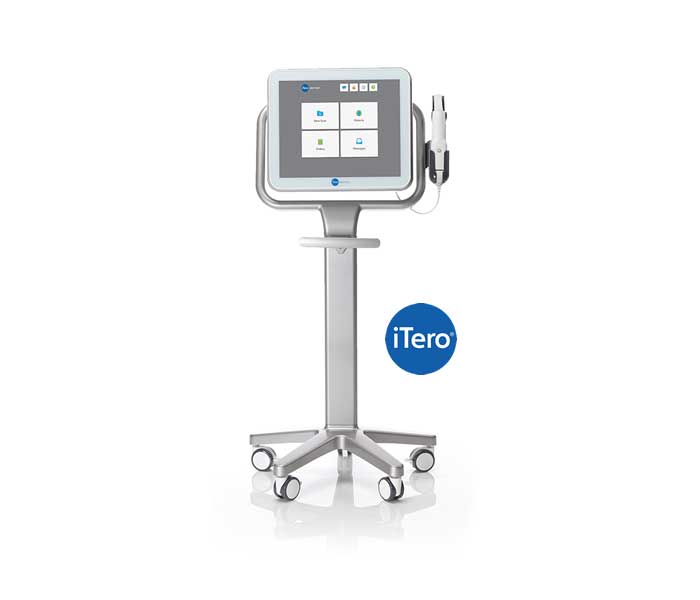
Cadent/Aligntech iTero
Are you a Cadent/Aligntech iTero clinician? At Global Dental Solutions, we embrace evolving technology in the dental industry and strive to meet the needs of all our existing and potential customers. Accepting your digital impression file is no problem. Additionally, using a digital impression system doesn’t mean you’re confined to only milled restorations, such as zirconia. Using the model work fabricated from the digital scan file by Cadent/Aligntech, we can fabricate any restoration type desired, from a standard PFM to a pressed and stacked E.max crown or bridge. We can also fabricate partials, dentures, and night guards using the printed model made from your scan.
To send us files, simply call (800) 577-8767 and request from customer support that Global Dental Solutions (iTero ID #5698) be added to your account. When you select the Ship-To option on the Rx page, there is a scroll-down menu that lists the labs that you have requested to be added to your account. From there, select our laboratory to send us the case.
Implant scanning with iTero
Please open the PDF file for instructions on proper implant scanning procedures.
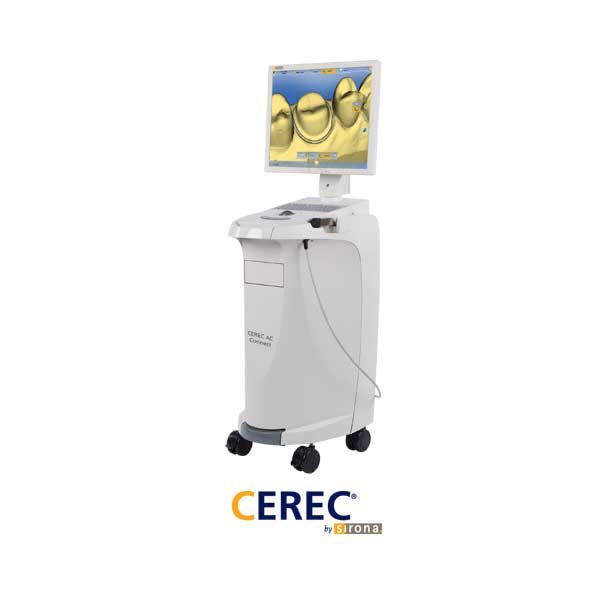
Sirona Cerec Connect
Dentsply Sirona’s cloud platform, DS Core, is replacing the Connect Case Center (CCC).

DS Core by Sirona
How To Setup a Preferred Lab
In order to start placing lab orders for appliances (such as night guard/splint, custom impression tray, model, temporary and final restorations and more) your lab partner first needs to be signed up to DS Core. How to invite labs to sign up for DS Core, see Invite Your Labs.
Once your lab partner is signed up, you can add them to your practice profile and start placing orders with them.
-You are logged in to DS Core.
- Navigate to your practice account on the top right and select Practice.
- In the Practice menu, go to Preferred labs.
- Click Add preferred labs
You will now see a list of labs on DS Core. The lab results are already organized starting with the closest to your practice location. Each lab result also displays the distance of the lab to your practice location.
You can also filter your search results by lab services. This is particular helpful if you expand your services, your current lab cannot support you or you need to find a lab for a specific service like final restoration, CEREC Guide, abutment or other services.
1) To search for your preferred lab, click on the search bar and type in the lab name.
-The list of labs will adjust to your search settings.
2) Once you find your lab, click on Add lab.
-A pop-up window will appear asking if you want to add the lab.
3) Click on Add lab to confirm and close the window.
4) Use the left arrow in the top left corner to return to your Preferred labs list.
-Your preferred lab is listed with the status Active.
Repeat to add additional labs.
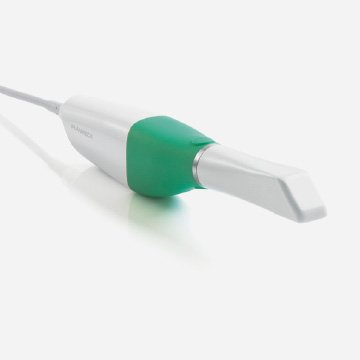

Are you a Planmeca clinician? At Global Dental Solutions, we embrace evolving technology in the dental industry and strive to meet the needs of all our existing and potential customers. Accepting your digital impression file is no problem. Additionally, using a digital impression system doesn’t mean you’re confined to only milled restorations such as zirconia. Using the model work we print from the digital scan file, we can fabricate any restoration type desired, from a standard PFM to a pressed and stacked E.max crown or bridge. We can also fabricate partials, dentures, and night guards using the printed model made from your scan.
Regardless if you use the Emerald or the Emerald S intraoral scanning wand, we can accept your files.
If you are subscribed to the Romexis® cloud based system, you can submit your files to us through Romexis. Within the Planmeca, on the send tab, you will see a button that says “Romexis Cloud.” Select Romexis Cloud and you will see an open text field to enter an email address. Enter digital@globaldentalsolutions.com into the text field. Once you enter our email address the first time, the address will be saved and appear all subsequent times you send cases via the Romexis Cloud.
If you are not a subscriber to Romexis, you can export your files and submit them to us through the method of your choice. Files can be submitted through the Henry Schein DDX (Digital Dental Exchange) or through any file sending service such as biobigbox.com. Please use the email address digital@globaldentalsolutions.com when sending cases to us via biobigbox.com or similar services.
For DDX, the steps you as a clinician would follow for adding us into your DDX software are simple: At the top left, there are two menu options, “Portal” and “Go To My Partners.” Select “Go To My Partners” and there will be a drop down that lists your current labs, or to “Add a lab.” Select “Add a Lab,” type in Global Dental Solutions and click “Add” and you are now ready to send your casework for superior results. Click here to be taken to the DDX login page and send us a case. If you need Planmeca support, please call Planmeca’s clinical support at 800-537-6070, option 1, or give us a call.
If you need Planmeca support, please call Planmeca’s clinical support at 800-537-6070, option 1, or give us a call.
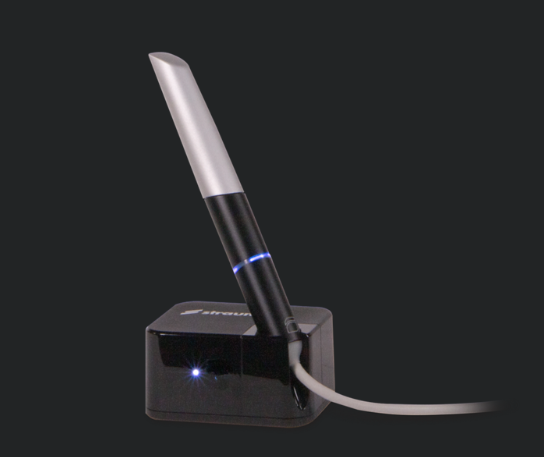
Straumann Virtuo Vivo™ Intraoral Scanner
Global Dental Solutions strives to improve our clinicians’ practices with the latest advancements in dental technology and streamlined workflows. The Virtuo Vivo™ is an award-winning intraoral scanner. This compact, lightweight scanner sets the standard for easy, seamless performance and offers a pen-like grip for enhanced precision and patient comfort. As with other IOS systems, it eliminates traditional tray impressions and powders, offering an expedited scanning experience.
Additional benefits of the Virtuo Vivo™ intraoral scanner include open system technology for immediate data export and sharing, high-resolution imaging scanning, 3D model software for enhanced precision, and guided workflow and integrated connectivity.
It’s easy to send your Virtuo Vivo™ intraoral scanner files to Global Dental Solutions for collaboration. Once scanning is complete, the scanner generates open STL/PLY files. To send cases to Global Dental Solutions’ laboratory via your Virtuo Vivo™ scanner, use your Cares Connect account. If you do not have a Cares Connect account, call tech support at 833-873-2838 and ask to set up an account. To add our laboratory to your existing Cares Connect account so you can send us cases, call tech support at 833-873-2838 and request that Global Dental Solutions be added to your account.
DDX: Digital Dental Exchange
We are a DDX-Enabled laboratory. Any Dentrix user can submit digital cases to our laboratory using DDX. Use it for prescription forms, photos, and/or digital impression files, which are submitted instantly over a secure electronic connection.
Eliminate the errors and omissions that often accompany handwritten lab prescriptions.
Save time and effort with an efficient “Quick Case” electronic form that allows you to submit basic casework quickly—or use more advanced tools and forms for more specialized cases.
Streamline the submission process by uploading digital case files from DDX directly to us. This automated process ties any digital file directly to your case and is much more efficient and less error-prone than mailing a physical disk, sending files in a separate email, or manually uploading files to an FTP site.
The steps you as a clinician would follow for adding us into your DDX software are simple: At the top left, there are two menu options, “Portal” and “Go To My Partners.” Select “Go To My Partners” and there will be a drop down that lists your current labs, or to “Add a lab.” Select “Add a Lab,” type in Global Dental Solutions and click “Add” and you are now ready to send your casework for superior results.
Click here to be taken to the DDX login page and send us a case.
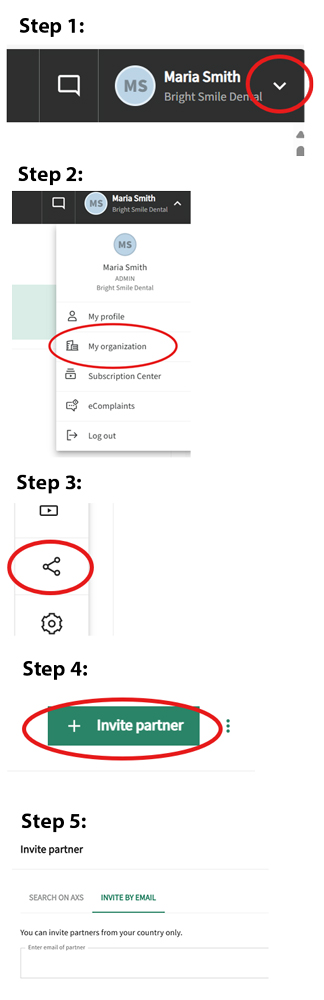
Resources for AXS:
To access AXS, please use the following link: Log in | Straumann {https://axs.straumann.com/login}
Here is a YouTube playlist that covers many AXS-related topics: {https://youtube.com/playlist?list=PLK_7Ubh5GY2fzpE2zQG6sX9PPeMbm5BcB&si=ZoU0GXTxpfPG4Lh4}
Here is an FAQ that may answer any questions that you have: Sign in FAQ | Straumann {https://axs.straumann.com/help-signin}
If you require assistance, please reach out to their Technical Support team at 1-833-873-2838